
For years, AI models were powerful but confined, operating only on the data they were trained on. That era is over. With the launch of Gemini 3 Pro in Google AI Studio, developers can now build applications that don't just generate content-they interact with the real world. By integrating powerful tools like Google Maps, Google Search, and the Veo video generation API, you can transform simple prompts into dynamic, data-driven experiences.
This guide is your comprehensive walkthrough for supercharging your AI Studio projects. We'll explore not just the 'how,' but the 'why'-showcasing the incredible potential unlocked when you ground your AI in real-time, real-world information. Get ready to move beyond the prompt and build the next generation of intelligent applications.
Why Go Beyond the Prompt? The Power of API Integrations in AI Studio
Out of the box, Gemini 3 Pro is a creative powerhouse, capable of generating everything from complex code to stunning web designs in a single shot. But its true potential is unlocked when it can access and reason over external information. This is where API integrations, or "tools," come into play.
From Static Apps to Dynamic Experiences
Imagine building a travel app. Without APIs, the AI could generate a generic itinerary based on its training data. With the Google Maps API enabled, it can create a personalized route based on real-time traffic, find actual points of interest near a user's location, and display them on an interactive map. The application goes from being a static text generator to a dynamic, useful tool. This approach can even be extended to build interactive 3D games and simulations with real-world data.
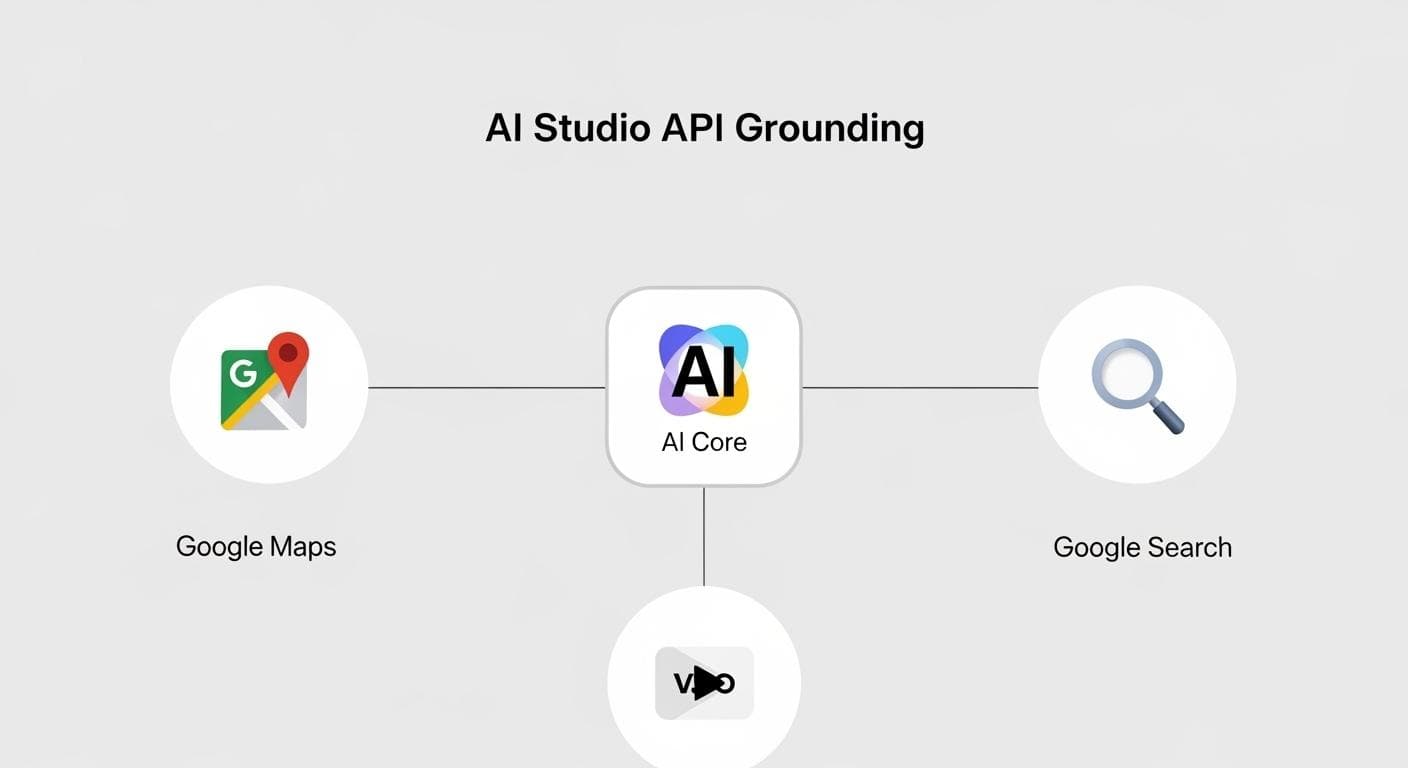
Understanding "Grounding": Connecting Your App to the Real World
"Grounding" is the process of providing a model with factual, up-to-the-minute information from a trusted source, like Google Search. This prevents hallucinations and ensures your application's outputs are accurate and relevant. When you enable the Search tool in AI Studio, you're telling the model: "Before you answer, check Google for the latest facts." This is crucial for apps that deal with current events, technical information, or any topic where accuracy is paramount.
The Developer's Toolkit: Setup and Prerequisites
Before you start building, you need to get your toolkit in order. AI Studio makes this process incredibly simple, but there are a few key steps and best practices to follow.
Step 1: Enabling API Tools in the AI Studio Interface
AI Studio's interface is designed for rapid prototyping. When you're in the "Build" tab, you'll find a section for enabling tools. With a single click, you can give your application access to a suite of powerful APIs.
- Navigate to the build interface in AI Studio.
- Look for the "Tools" or "API Capabilities" section, often represented by chips or toggles.
- Simply click to enable Google Maps, Google Search, or other available tools like the Veo API. The model will now automatically know how and when to use these tools based on your prompt.
Step 2: Getting Your API Keys and Understanding Quotas
While you can prototype many features using the free quota in AI Studio, building production-ready apps or using specialized APIs like Veo requires an API key.
- Free Tier: AI Studio provides a generous free tier for testing and experimenting with the core Gemini models. This is perfect for getting your feet wet.
- Paid API Key: To go beyond the free quota or to use premium APIs (like Veo for video generation), you'll need to enable billing on a Google Cloud project and generate an API key. You can easily add this key to your AI Studio environment to unlock the full suite of capabilities.
Step 3: API Key Security Best Practices
Your API key is a secret credential. Treating it with care is non-negotiable. Exposing it on the client-side (in your HTML or JavaScript) can allow malicious actors to hijack your key, leading to unexpected charges on your account. Always follow these security rules:
- Never embed keys directly in client-side code.
- Use a Backend Proxy: For production applications, create a simple backend server (e.g., using Node.js, Python, or Google Cloud Functions). Your web app calls your backend, which then securely adds the API key and forwards the request to the Google API. This way, the key never leaves your server.
- Restrict Your Key: In the Google Cloud Console, configure your API key to only be usable from specific IP addresses (your server's) or HTTP referrers (your website's domain).
Project 1: The "Smart Itinerary" App (Integrating Search & Maps)
Let's put theory into practice. Our first project is a simple but powerful application that finds and plots running routes on an interactive map.
The Goal
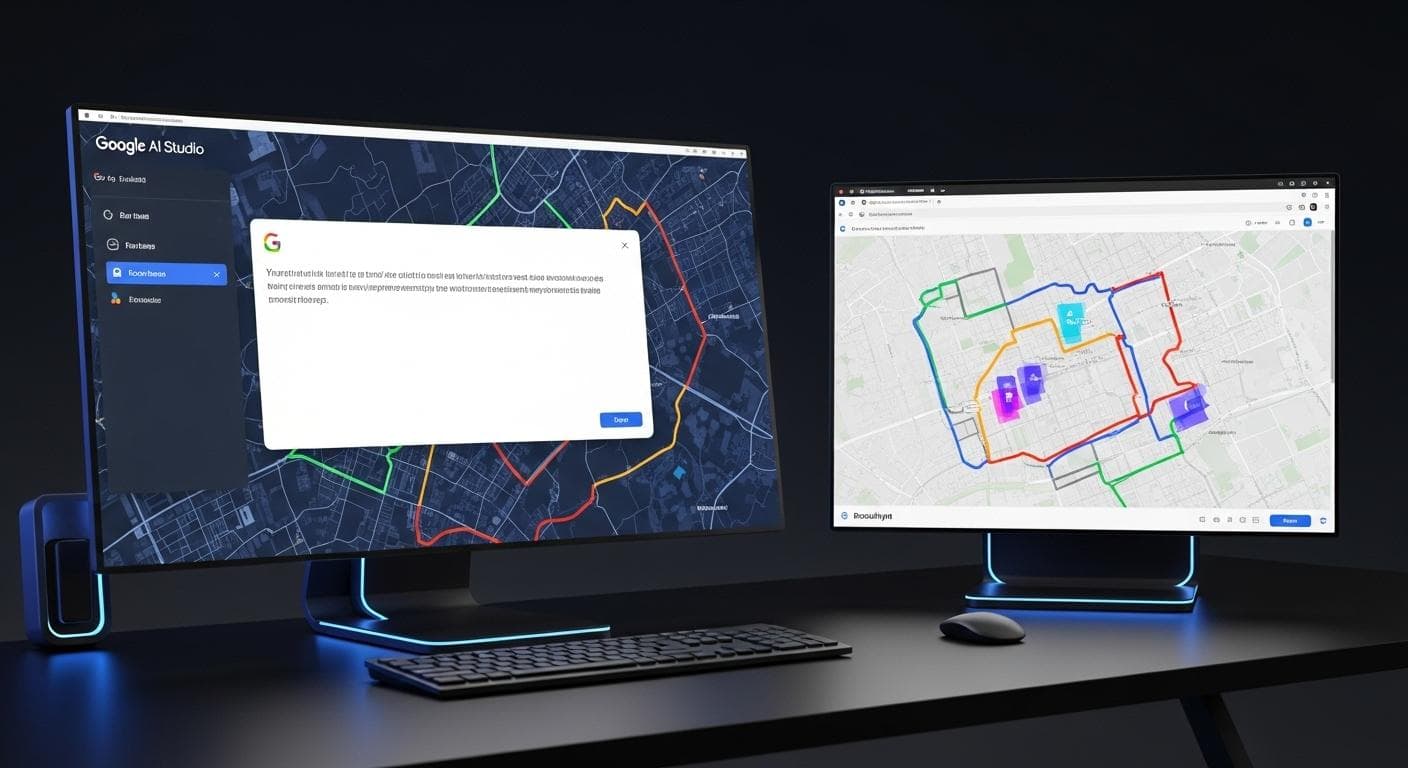
Build an app that takes a city and a desired running distance as input. It should use Google Maps data to find suitable parks or trails and display them on an interactive map interface.
The Core Prompt & Step-by-Step Walkthrough
With the Google Maps tool enabled, the prompt can be remarkably simple and conversational.
Create a web app with a clean interface. It needs two input fields: one for a location (like 'Brooklyn, NY') and another for a running distance in kilometers. When I click a 'Find Routes' button, use Google Maps data to find real parks or running paths near that location that match the distance, and plot them on an interactive map.
AI Studio will then:
- Plan the Application: It will break down the task into creating the HTML/CSS for the interface, the JavaScript for the logic, and the calls to the Google Maps API.
- Generate the Code: It writes all the necessary code for a fully functional web app.
- Leverage the Maps API: The model intelligently forms the correct query for the Maps API, requesting locations tagged as "parks" or "trails" within the specified geographical area.
- Render the App: In seconds, a live, interactive application appears in the preview window, ready for you to test. You can type in a location and see real-world results immediately.
Project 2: The "AI Weather Reporter" App (Integrating Search & Veo)
This project combines real-time data with generative video to create a truly futuristic application: a personalized video weather report.
The Goal
Build an app where a user can input a location and upload a photo of themselves. The app will use Google Search to get the current weather and then use the Veo API to generate a short video of the person dressed appropriately for that weather.
The Core Prompt & Step-by-Step Walkthrough
Here, we'll enable both the Google Search and Veo API tools.
Build an app called 'AI Weather Reporter.' It should have a text input for a location and an image upload button. The app must first use Google Search to find the current weather forecast for the given location. Then, using the uploaded photo as a reference, generate a 5-second video with the Veo API showing the person in a new scene, dressed in clothing suitable for that weather.

This prompt triggers a sophisticated chain of events:
- Grounding with Search: The model's first step is to query Google Search for "weather in [location]".
- Reasoning: It analyzes the search results (e.g., "75°F and Sunny" or "30°F and Snowing") and reasons about what kind of clothing is appropriate.
- Prompting Veo: It then constructs a new, detailed prompt for the Veo API, combining the original image with the new context. For example: "A video of the person in this image, now wearing a heavy winter coat and a beanie, standing in a snowy park." This demonstrates how interactive apps can be created from images and data.
- Video Generation: The Veo API generates the video, which is then displayed in the app. The result is a highly personalized and contextually aware piece of media, created in moments.
The Ultimate Mashup: A Cookbook of Advanced Project Ideas
Once you master integrating individual APIs, the real magic happens when you combine them. Here are a few ideas to inspire your next project.

- Idea 1: Real Estate Explorer (Search + Maps + Veo): Create an app that lets users explore real estate listings. Use Search to pull current listings, plot them on a Map, and use Veo to generate a virtual video walkthrough of a property based on its photos and description.
- Idea 2: Historical Tour Guide (Search + Maps + Veo): Build an app where a user can drop a pin on the Map. The app uses Search to find historical facts about that location and then generates a short documentary-style video with Veo, narrated by an AI voice, explaining its history. This is a great example of building niche and educational tools.
- Idea 3: Running Route Visualizer (Maps + Veo): An evolution of our first project. After plotting a running route with Maps, use Veo to generate a first-person video preview of what it would look like to run that exact path.
Troubleshooting and Best Practices
Working with APIs can sometimes lead to unexpected results. Here are a few tips for a smoother development process.
Deeper Prompt Engineering for Tools
Getting the model to use an enabled tool is all about clarity. Don't just describe the final output; suggest the process.
- Poor Prompt: "Make an app about running in NYC."
- Excellent Prompt: "Build an app that uses the Google Maps tool to find running routes in NYC and displays them on a map."
- Advanced Prompt (Multiple Tools): "I'm planning a trip. First, use Google Search to find three famous historical landmarks in Rome, Italy. Then, use the Google Maps tool to calculate the walking distance between them and display the route." This guides the model's sequence of actions.
Advanced Error Handling and Rate Limits
When you move from prototype to production, you'll encounter the realities of API usage.
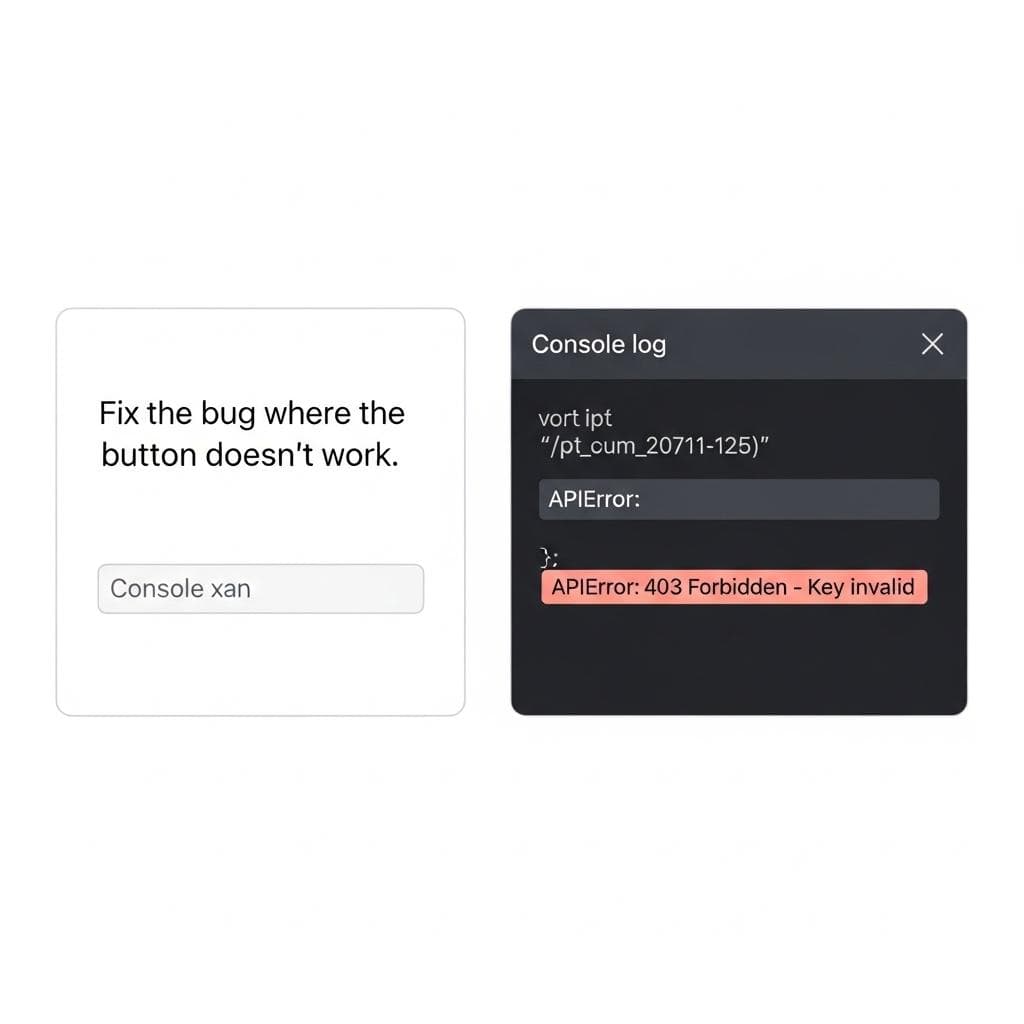
- Debugging API Errors: AI Studio provides access to all the generated source code. Look for files that handle API communication to see the exact requests being made. If you get a specific HTTP error code, act accordingly: a 403 Forbidden error usually means an issue with your API key, while a 429 Too Many Requests error means you've hit your rate limit.
- Managing Quotas: Most Google APIs have usage quotas to ensure fair use. Monitor your usage in the Google Cloud Console. For high-traffic apps, you may need to request a quota increase or implement caching strategies to reduce the number of API calls.
From AI Studio to the World: Deploying Your Supercharged App
AI Studio is more than just a playground. Once you've perfected your application, you can easily view the complete source code and deploy it to platforms like Google Cloud Run. The journey from a simple idea typed into a prompt box to a globally accessible, data-driven application has never been shorter.
The integration of real-world data APIs directly into the generative process marks a pivotal moment for AI development. It's a shift from creating novelties to building truly useful, intelligent, and context-aware tools. The only limit is your imagination.
What's the most innovative app idea you have that combines Gemini 3 with real-world APIs? Share your thoughts in the comments below! ```




Comments
We load comments on demand to keep the page fast.