
Are You Still Using AI in the Browser? You're Missing a Superpower.
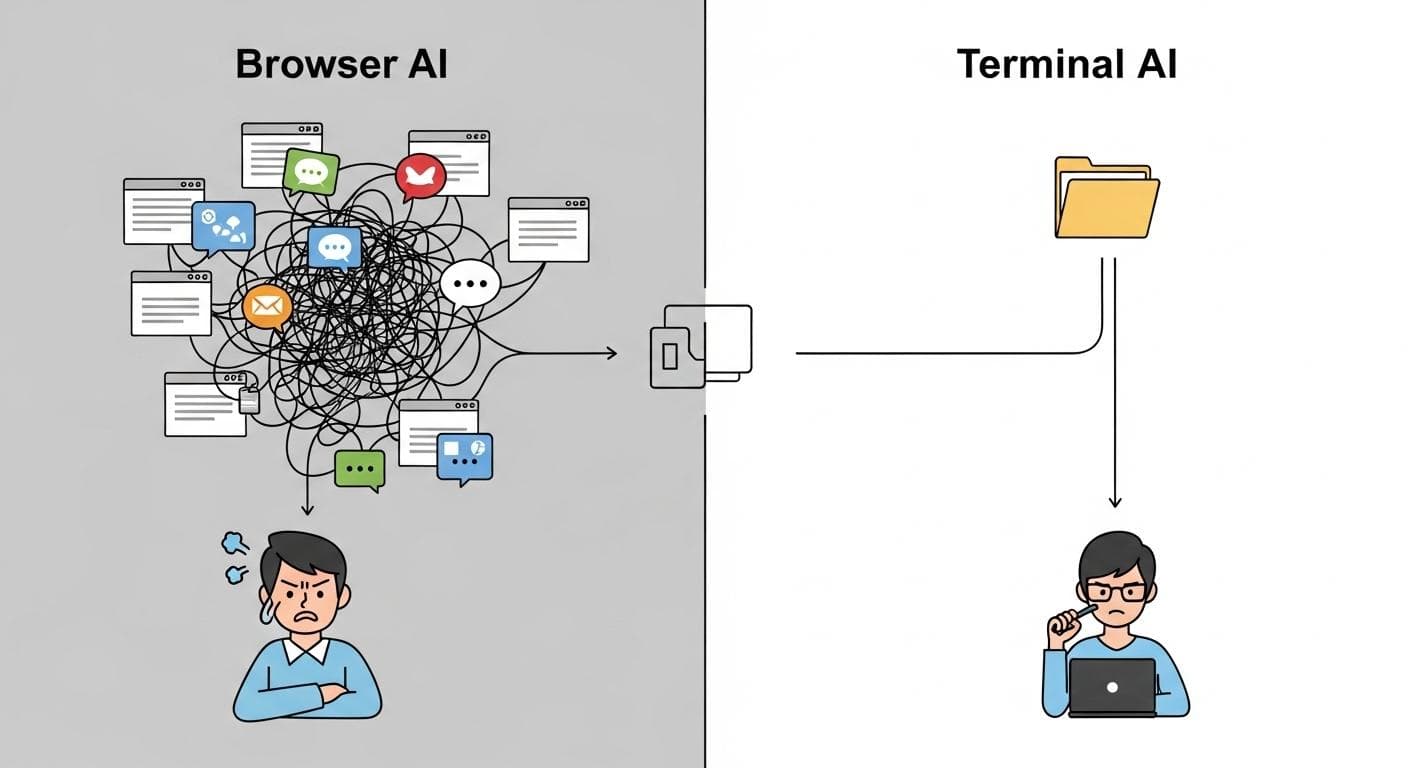
Let's be honest. If you're a heavy AI user, your workflow is probably a chaotic mess of browser tabs. You start a research project in one chat, but the AI loses context, forcing you to start a new one. To cross-reference, you open another chat with a different AI model. Before you know it, your project is fragmented across twenty different conversations, your notes are scattered, and you've spent more time copy-pasting than creating.
The Frustration of Lost Context and Walled Gardens
This isn't your fault; it's by design. Browser-based AI tools are walled gardens. They trap your conversations-your context, your ideas, your project's history-on their servers. You're essentially renting your workflow from them. When a new, better AI comes along, you can't just pick up your project and move. You have to start from scratch, re-explaining everything. It's inefficient, restrictive, and it holds you back.
Why the Terminal is the New Frontier for AI Power Users
There's a better way. The command-line terminal, long the domain of developers and system administrators, has become the ultimate environment for AI power users. Why? Because it breaks you out of the browser's cage. In the terminal, the AI works for you, on your machine, with your files. It's a paradigm shift that gives you unprecedented control, speed, and flexibility. And a new open-source tool, Open Code, is leading this revolution.
What is Open Code? Your All-in-One AI Command Center
Open Code is a free, open-source AI terminal that consolidates the best features of tools like Claude Code and Gemini CLI into a single, powerful application. It's designed for anyone who wants to integrate AI more deeply into their work, from developers and researchers to writers and students. It's not just another chat window; it's a complete command center for your projects.
Core Philosophy: Open-Source, Multi-Model, and You're in Control
The driving force behind Open Code is a simple but powerful idea: you should own your context. All your conversations, research, and project files live in a single folder on your hard drive. This makes your work portable, private, and future-proof.
Open Code's philosophy rests on three pillars:
- Open Source: The code is transparent and community-driven. You can inspect it, trust it, and even contribute to it.
- Multi-Model: Don't get locked into one ecosystem. Open Code acts as a universal hub, allowing you to seamlessly switch between different AI models-from commercial giants like Claude and GPT-4 to private, local models running on your own machine.
- User-Controlled: Your data is yours. The AI adapts to your project, not the other way around. You decide what files it can access and what tasks it can perform.
Installation and Setup in Under 5 Minutes
Getting started with Open Code is incredibly simple. It's designed to work on Mac, Windows (via WSL), and Linux.
Step 1: Install Open Code with a Single Command
Open your terminal and paste the following official installation command:
curl -fsSL https://opencode.ai/install | bash
This script will handle the installation for you. Once it's done, you may need to restart your terminal or run source ~/.bashrc (or source ~/.zshrc on a Mac) to update your system's path.
Step 2: A Quick Tour of the Terminal User Interface (TUI)
Navigate to a project folder (or create a new one with mkdir my-ai-project && cd my-ai-project) and launch the application by typing:
opencode
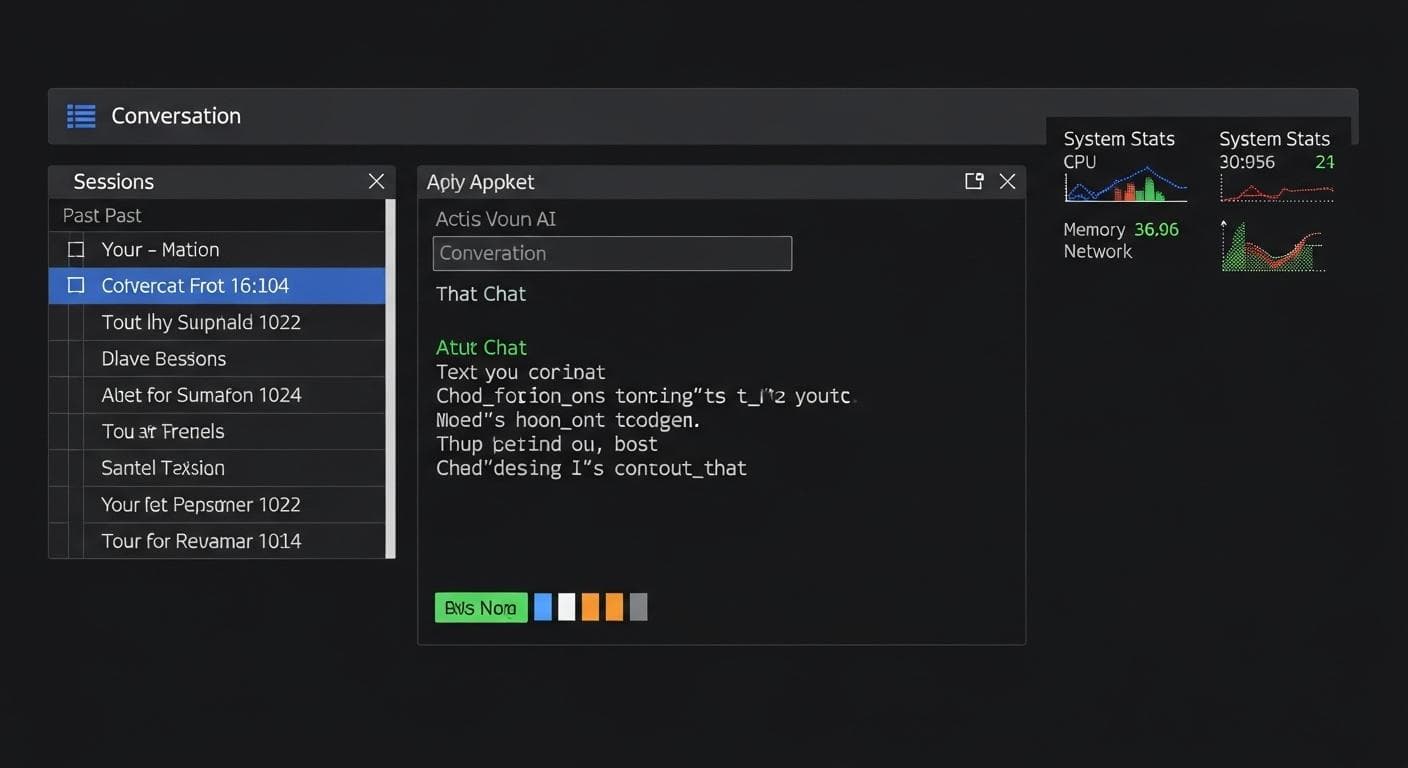
You'll be greeted by a clean, modern Terminal User Interface (TUI). You can immediately start chatting. The interface is intuitive, but a few commands are essential:
- `/model`: Lists available AI models and allows you to switch between them.
- `/sessions`: Manages your conversation history, letting you resume past chats.
- `/share`: Generates a shareable web link for your current conversation.
- `/exit`: Quits the application.
Unlocking Every AI Model: A Practical Guide
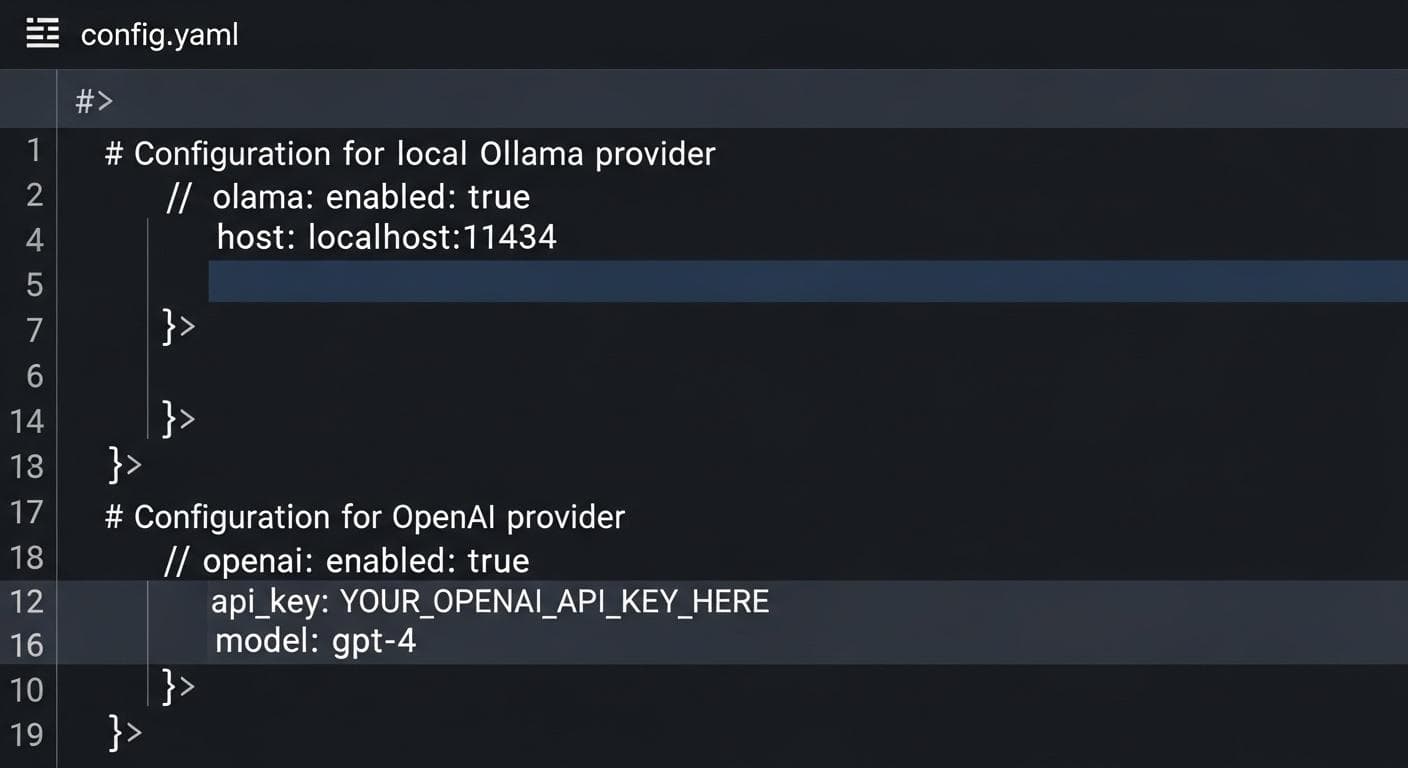
Open Code's true power lies in its model-agnostic approach. While the defaults are great, configuring it to use all your favorite AIs is where the magic happens. You can do this by creating a config.yaml file in your Open Code configuration directory (usually ~/.config/opencode/).
The Killer Feature: Running Local Models with Ollama (Llama 3 Setup)
This is a game-changer for privacy and cost. If you have Ollama installed, you can run powerful open-source models like Llama 3 or Mistral directly on your computer. To enable this, simply add a provider block for Ollama to your config.yaml file. The AI never sends your data to the cloud, giving you greater control over your AI context.
Connecting to Grok, OpenAI, and More with API Keys
For most commercial models, you'll need to provide an API key. You can add keys for providers like OpenAI (for GPT-4o), xAI (for Grok), and Google (for Gemini) directly in the same config.yaml file. This centralizes all your AI connections in one place.
Here is an example of what your config.yaml might look like to enable both a local Llama 3 model and OpenAI's GPT-4o:
providers:
  # This enables your local Ollama models
  - name: ollama
  # This enables OpenAI models using your API key
  - name: openai
    apiKey: "sk-YourSecretOpenAI_KeyGoesHere"
No API Keys Needed: Connecting Your Claude Pro Subscription
If you're a Claude Pro subscriber (around $20/month), you can connect your account to Open Code without needing to manage expensive pay-per-use API keys. Run this command in your terminal:
opencode auth login
Select Anthropic, log in through your browser, and you're done. You can now access Claude 3.5 Sonnet directly within Open Code, leveraging your existing subscription.
Open Code vs. The Competition: A Head-to-Head Showdown
How does Open Code stack up against the official terminal tools from the big players?
Feature Comparison Table: Open Code vs. Claude Code vs. Gemini CLI
| Feature | Open Code | Claude Code | Gemini CLI |
|---|---|---|---|
| Local Model Support (Ollama) | ✔ Yes | ✘ No | ✘ No |
| Multi-Model Support | ✔ Yes (Any) | ✘ No (Claude Only) | ✘ No (Gemini Only) |
| Open Source | ✔ Yes | ✘ No | ✔ Yes |
| Use Pro Subscription (No API) | ✔ Yes (Claude) | ✔ Yes | ✔ Yes |
| Cost | Free (BYO Keys/Subs) | Requires Pro Sub | Generous Free Tier / Pro Plans |
Verdict: Which AI Terminal is Right for You?
While Claude Code and Gemini CLI are excellent, they lock you into their respective ecosystems. Open Code is the clear winner for power users who value flexibility, privacy, and control over their AI context. The ability to run local models is its standout feature, and its open-source nature ensures it will continue to evolve with the community's needs.

Master the Workflow: Core Features That Will Change How You Work
Open Code isn't just a chat client; it's packed with features designed to enhance your productivity.
Managing Conversations with "Sessions"
Every chat is saved as a session. You can list them with /sessions, resume any previous conversation, and never lose your train of thought.
Sharing Your AI Chats with a Single Command
Need to share your findings with a colleague? The /share command generates a unique URL to a web page displaying your entire conversation, complete with formatting.
Building Your Own AI Assistants with "Agents"
This advanced feature allows you to define custom personas and toolsets for the AI. By creating an agents.md file in your project directory, you can create specialized assistants for specific tasks. For example, to create a stern code reviewer, you could add the following to your agents.md:
## Code Critic

You are a senior software engineer with 20 years of experience. Your sole purpose is to provide brutally honest, constructive feedback on code. You are direct, concise, and do not sugar-coat your critiques. Identify potential bugs, style violations, and inefficient patterns. Always provide a corrected code snippet.
You can then invoke this agent within Open Code to get specialized feedback without biasing your main conversation. To dive deeper into this topic, explore our article on mastering agents for a smarter workflow.
The Ultimate Strategy: A "One Project, Many AIs" Walkthrough
Here's where it all comes together. With Open Code, you can implement a multi-AI strategy to use the best AI for each part of your project without ever leaving your terminal or copying and pasting context. Imagine you're writing a research paper. You can start by using Claude 3.5 Sonnet for its creative brainstorming. Then, you can switch to a local Llama 3 model to analyze a sensitive data file on your hard drive, ensuring total privacy. Finally, you can use Gemini to perform up-to-the-minute web searches to find the latest citations. All three AIs work within the same project folder, reading the same files and context. It's like having a team of specialized AI experts collaborating on your project, seamlessly.

Conclusion: Stop Renting Your AI, Start Owning It
The move from browser-based AI to a terminal-first workflow is more than just a productivity hack; it's a fundamental shift in your relationship with artificial intelligence. You move from being a passive user in a locked-down platform to an active owner of a powerful, customizable tool. Open Code puts you back in the driver's seat, giving you the freedom to choose your models, the privacy to protect your data, and the control to build a workflow that is truly your own.
By breaking out of the browser, you're not just getting a better chat interface-you're unlocking a superpower. You're building a system where all your work, decisions, and context are yours to keep, ready for whatever the future of AI brings. It's time to stop renting and start owning. For a comprehensive overview of this new paradigm, read our Ultimate Guide to AI in the Terminal.
Frequently Asked Questions (FAQ)
- Is Open Code safe to use?
Yes. Open Code is open source, which means its code is publicly available for anyone to audit for security vulnerabilities. Furthermore, its ability to run local models via Ollama means you can have a completely private AI workflow where your data never leaves your machine. For more details, refer to our guide on mitigating risks when using terminal-based tools. - Can Open Code access my files?
Open Code only has access to the directory from which you launch it. It cannot read or write files outside of that project folder unless you explicitly direct it to. This project-based approach gives you granular control over what the AI can see and do on your computer. - How much does Open Code cost?
The Open Code software itself is completely free. Your costs will depend on the AI models you choose to use. Running your own local models with Ollama is free. Using commercial models from providers like OpenAI, Anthropic, or Google will incur costs either through pay-per-use API keys or a monthly subscription (like Claude Pro).
What's the first project you're going to supercharge by taking it into the terminal? Share your ideas in the comments below!



Comments
We load comments on demand to keep the page fast.