
If you're still wrestling with AI in a web browser for any serious work, you're operating with one hand tied behind your back. The endless tabs, the lost context, the constant copy-pasting - it's a slow, chaotic, and inefficient way to work. While AI companies market their glossy web interfaces to the masses, they quietly offer something far more powerful to developers and insiders: command-line tools.
What they don't tell you is that these terminal-based tools aren't just for writing code. They are a secret weapon for writers, researchers, project managers, and any power user who wants to be ten times faster and more organized. Once you experience the speed, control, and raw capability of AI in the terminal, you'll never look back at the browser the same way again.
The Browser is a Sandbox. It’s Time to Break Out.
Let's be honest about the limitations of using AI in a browser. It's a workflow defined by friction and fragmentation, designed for casual queries, not complex, ongoing projects.
Recognize the Pain: The Hidden Costs of Browser-Based AI
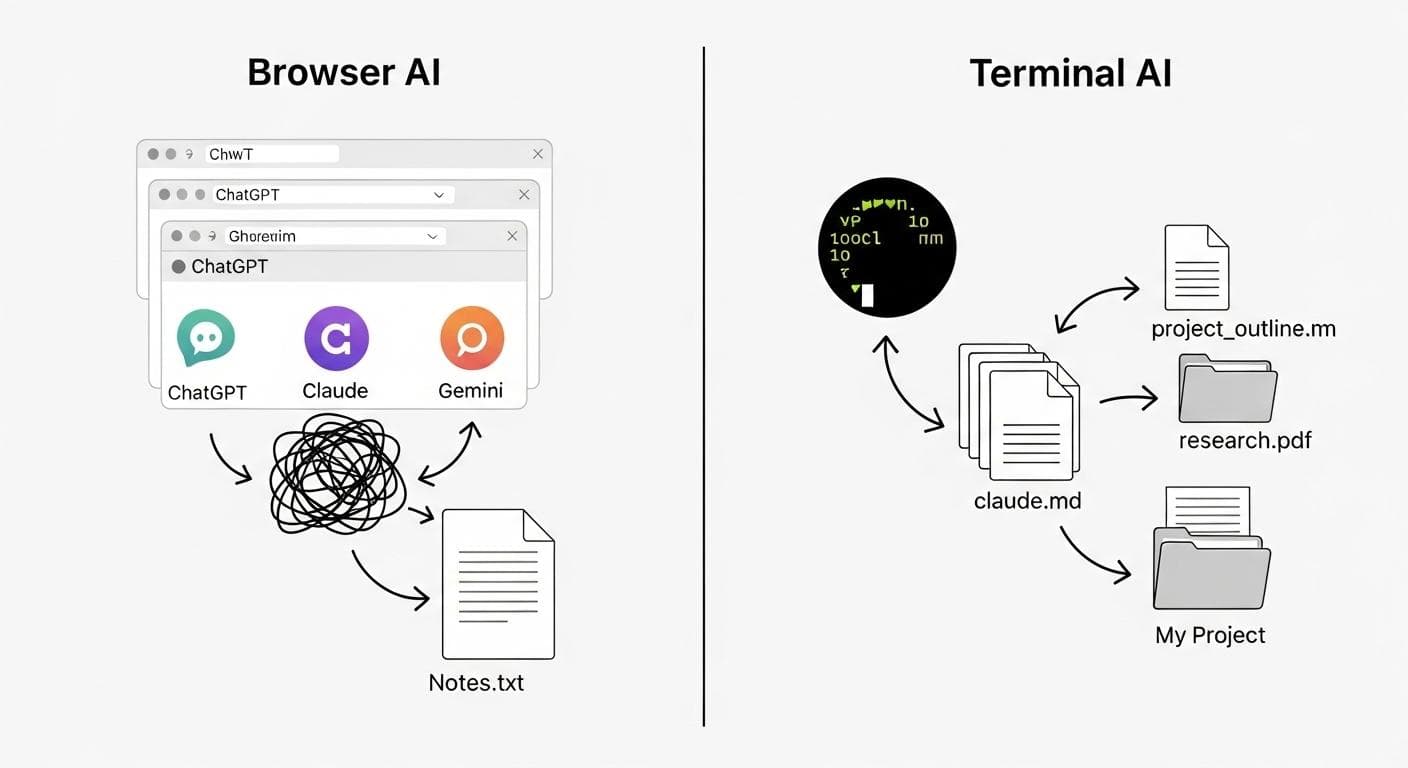
Does this scenario sound familiar? You're deep in a research project. You have one tab open with ChatGPT, but it's your fifth chat on the topic because the previous ones lost context. You have another two tabs open with Claude and Gemini to cross-reference facts. You're frantically trying to consolidate the best parts into a notes app, but the copy-paste formatting is a mess. Your project isn't a cohesive whole; it's a digital debris field scattered across twenty browser tabs and disconnected notes.
'I went from 20 browser tabs of chaos to a single, organized project folder where three different AIs collaborate. It completely changed my workflow.' - An AI Power User
The Core Problem: You Don’t Own Your Context
This chaos stems from a fundamental issue: in the browser, you don't own your project's context. Your conversations are trapped on a company's servers, locked within a specific chat session that has a limited memory. When that session ends or the context window fills up, you have to start over, painstakingly re-explaining everything to the AI. This is the digital equivalent of having a brilliant assistant with severe short-term memory loss.
Welcome to the Command Line: Your AI Superpower HQ
Moving your AI workflow to the terminal solves this problem at its root. It transforms the AI from a forgetful web app into a persistent, powerful collaborator that lives right on your computer, with direct access to your files and projects.
Myth vs. Reality: This Isn't Just for Coders
Before we dive in, let's dispel a common myth. The terminal, or command-line interface (CLI), is not some arcane tool reserved exclusively for elite programmers. If you can type a question into a chat window, you can use AI in the terminal. The modern tools we'll explore are user-friendly, visually intuitive, and designed to be accessible.

The 3 Pillars of Terminal AI Superiority
- Control: In the terminal, you manage the context. You create a simple text file (e.g., `gemini.md` or `claude.md`) that serves as the project's permanent brain. Every time you start a session, the AI reads this file, instantly knowing everything about the project's goals, progress, and key decisions. No more re-explaining.
- Files: This is the game-changer. Terminal AIs can read and write files directly on your computer. Ask it to research a topic and write a 1,000-word report? It creates the file `report.md` for you. Need it to read your existing notes in your Obsidian vault? It can do that. This eliminates the copy-paste nightmare forever.
- Automation: The terminal is the native environment for scripting and automation. You can create chains of commands, build custom agents for specific tasks, and integrate AI into larger workflows in ways that are simply impossible in a browser sandbox.
Getting Started: Your First Project in the Terminal (In 5 Minutes)
Talk is cheap. Let's get you set up with your first tool. We'll start with Google's Gemini CLI because it has a very generous free tier, making it the perfect entry point.
Step 1: Installing Your First Tool (Gemini CLI)
Installing most CLI tools is a single command. Open your terminal (Terminal on macOS, PowerShell/WSL on Windows, or any terminal on Linux) and run the following command. You may need npm (Node Package Manager) installed first.
npm install -g @google/gemini-cli
If you run into permission errors, you might need to run it with sudo (e.g., sudo npm install...). On a Mac, you can also use Homebrew: brew install gemini-cli.
Step 2: Your First Command: Beyond a Simple Question
Before launching, let's get organized. Create a dedicated folder for your first project:
mkdir coffee-project
cd coffee-project
Now, launch the tool by simply typing gemini. It will walk you through logging in with your Google account. Once you're in, you'll notice a few things the browser hides, like a clear indicator of how much context you have left.
Step 3: The "Aha!" Moment - Making the AI Read and Write a File
This is where the magic happens. Give Gemini a task that involves your file system:
Research the top 5 pour-over coffee methods from reputable sources. Compile the results into a document named 'coffee-methods.md' and create a separate file 'blog-plan.md' with a 3-part blog series outline based on the research.
Gemini will ask for permission to create these files. Once you grant it, check your coffee-project folder. The files will be there, perfectly formatted. No copying, no pasting. This is the beginning of a whole new way of working.
Level Up: The Pro Workflow Competitors Aren't Talking About
Once you've mastered the basics, you can unlock workflows that are simply unthinkable in a browser.
The Power of the Context File: Your Project's "Brain"
Inside your project directory, run the command /init. This powerful command instructs the AI to analyze all the existing files in your current folder and generate a summary file named gemini.md. This file doesn't track past conversations; instead, it serves as the project's initial set of instructions or its permanent 'brain.' Every time you launch gemini in this folder, it loads this file first, instantly catching up on the project's purpose without you having to re-explain anything.
The Multi-AI Orchestra: Using Claude, Gemini, and Others Together
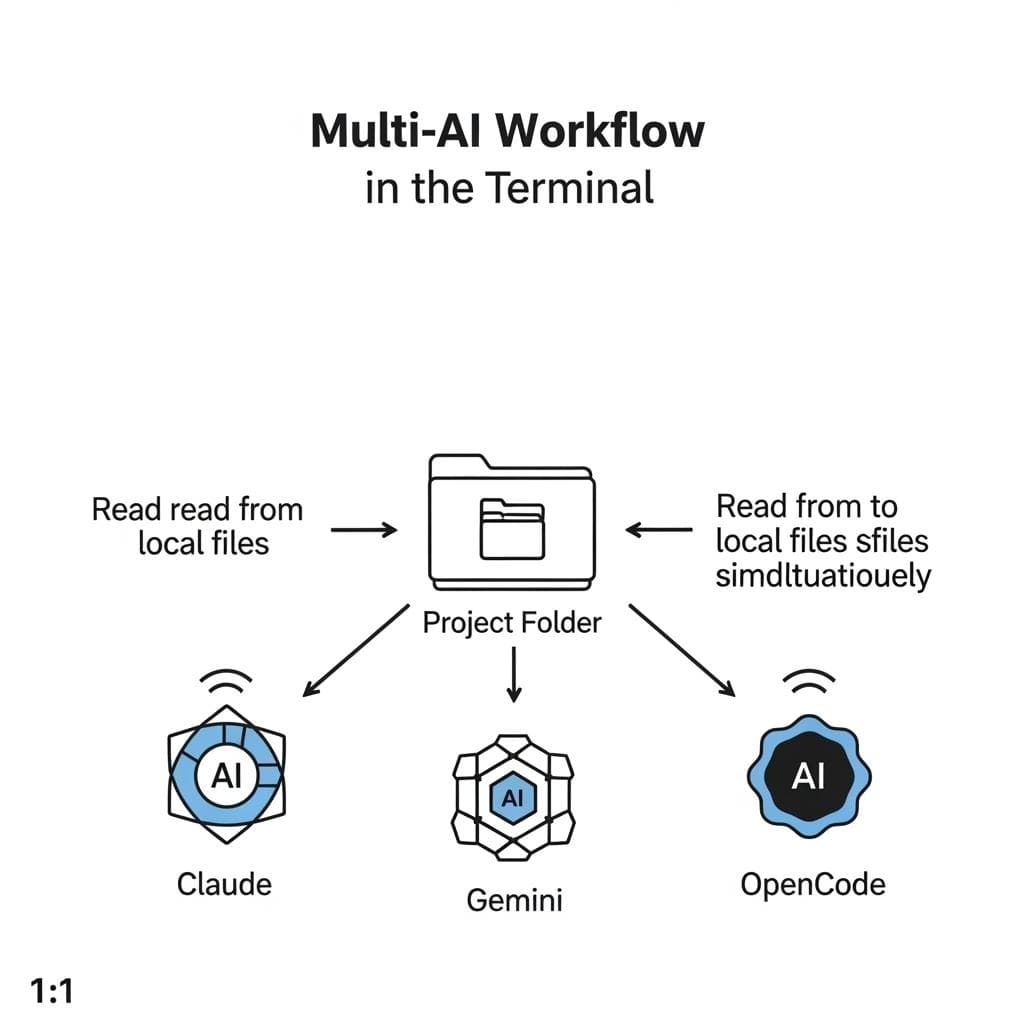
Here's the ultimate power move. Because your project context lives in local files, you are no longer locked into one provider. You can have Claude, Gemini, and other command-line AIs all working on the same project, in the same folder, at the same time.
Imagine this: You use Claude's powerful reasoning to generate a complex project outline and save it as outline.md. Then, you fire up Gemini in the same folder and ask it to perform web research to flesh out each section, saving the results to new files. Finally, you use OpenCode with a local model to review all the generated files for style consistency. They can all see each other's work because they are all reading from the same source of truth: the files on your hard drive.
Unlocking Agents: How Claude Code Delegates Tasks
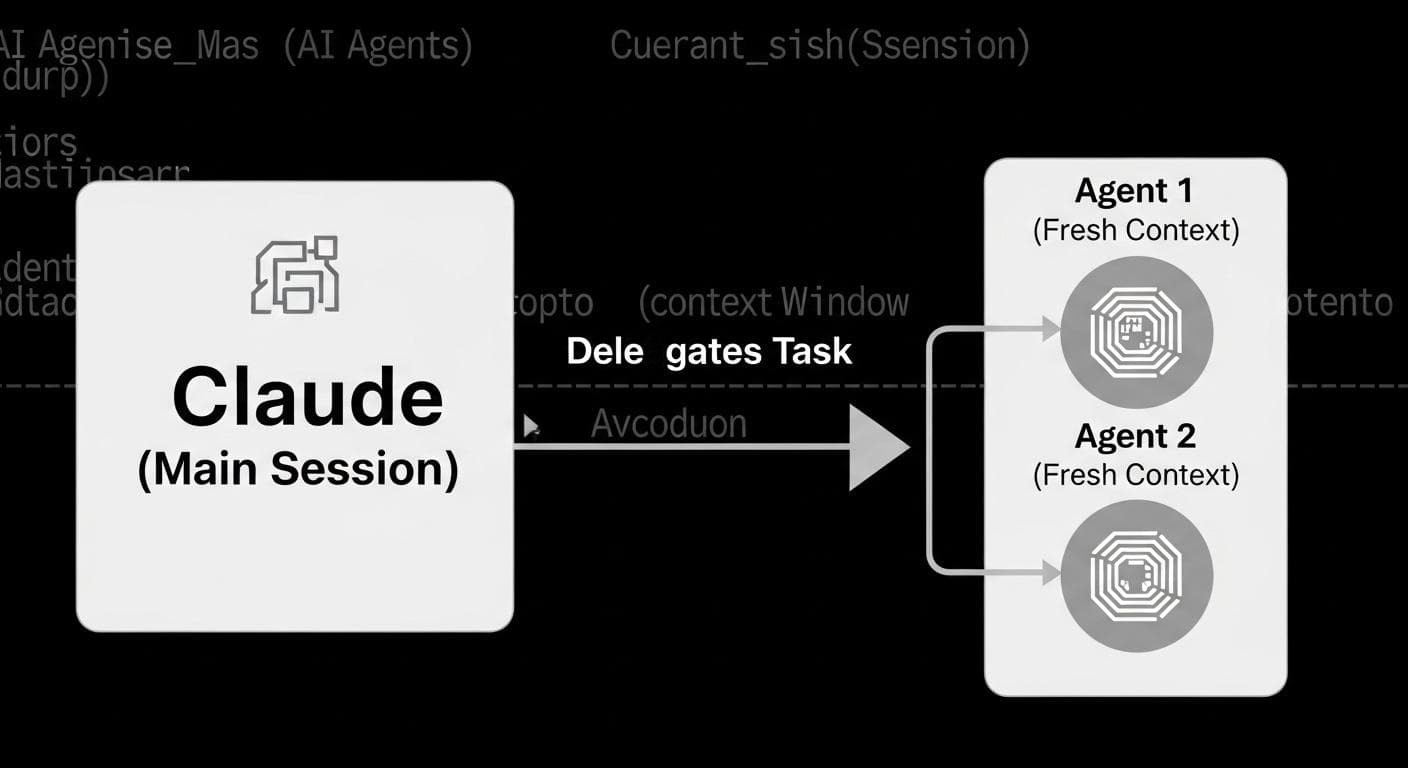
Tools like Anthropic's claude-code take this a step further with a feature called Agents. An agent is a specialized instance of the AI that you can create for a specific task - like a 'brutal critic' agent to review your writing or a 'market research' agent.
When you delegate a task to an agent, the main AI spins up a separate, clean instance with a fresh context window. This is incredibly powerful. It means your main conversation doesn't get bloated with tangential research, and the agent can focus on its single task without bias from your previous chat history. You can even run multiple agents in parallel, turning your single terminal into a hive of productive AI assistants.
The Best Command-Line AI Tools for the AI Prosumer
Ready to make the switch? Here are three top-tier tools to get you started, along with a quick comparison:
| Tool | Best For | Cost | Killer Feature |
|---|---|---|---|
| Claude Code | The All-Round Power User | Claude Pro Subscription ($20/month) | Agents for task delegation |
| Gemini CLI | The Accessible Start | Generous Free Tier | Simple file system access |
| OpenCode | The Open-Source Contender | Free (uses your keys/subs) | Use any model (local, Claude, Grok) |
Beyond Chat: Security, Privacy, and True Automation
Switching to the terminal isn't just about efficiency; it's about reclaiming ownership of your data and unlocking true automation.
Your Data, Your Rules: The Privacy Advantage
When you use a web UI, your prompts and the AI's responses are stored on company servers, subject to their data policies. By operating in the terminal, your entire project - notes, drafts, and context files - lives locally on your hard drive. For the ultimate in privacy, tools like OpenCode allow you to connect to local language models running via Ollama, meaning your sensitive data never has to leave your machine.
The Automation Engine: Connecting Your Tools
The real power of the command line is its scriptability. You can write simple shell scripts to chain AI commands together. For example, you could write a script that tells Gemini to transcribe an audio file, then pipes that transcription to Claude to summarize it, and finally uses a tool like Pandoc to convert that summary into a PDF report - all with a single command. This level of integration with your other power-user tools is impossible from within a browser.

Final Verdict: Is It Time For You to Make the Switch?
Working with AI in the browser feels like using a hammer and chisel. It gets the job done for small tasks, but it's clumsy and limiting for anything substantial. The command line, by contrast, is a full suite of power tools. It gives you back control over your projects, your data, and your workflow. You stop being a passive user of a web app and become an active orchestrator of intelligent agents.
The initial learning curve is minimal, but the ceiling for what you can achieve is infinitely higher. By breaking out of the browser sandbox, you're not just finding a better way to chat with an AI; you're fundamentally changing your relationship with technology and unlocking a new level of productivity. You're building your own personal superpower.
What's the biggest frustration you have with browser-based AI right now? Share your experience in the comments below!



Comments
We load comments on demand to keep the page fast.